>expo WARNING: expo-cli has not yet been tested against Node.js v18.12.1. If you encounter any issues, please report them to https://github.com/expo/expo-cli/issues
-V, --version output the version number --non-interactive Fail, if an interactive prompt would be required to continue. -h, --help output usage information
Commands:
init [name] Create a new Expo project start [path] Start a local dev server for the app start:web [path] Start a Webpack dev server for the web app export [path] Export the static files of the app for hosting it on a web server install [packages...] Install a module or other package to a project run:android [path] Run the Android app binary locally run:ios [path] Run the iOS app binary locally send [path] Share the project's URL to an email address
login Login to an Expo account logout Logout of an Expo account register Sign up for a new Expo account whoami Return the currently authenticated account
client:install:ios Install Expo Go for iOS on the simulator client:install:android Install Expo Go for Android on a connected device or emulator
config [path] Show the project config doctor [path] Diagnose issues with the project upgrade [sdk-version] Upgrade the project packages and config for the given SDK version
customize:web [path] Eject the default web files for customization prebuild [path] Create native iOS and Android project files before building natively. Learn more: https://docs.expo.dev/workflow/customizing/
publish [path] Deploy a project to Expo hosting publish:set [path] Specify the channel to serve a published release publish:rollback [path] Undo an update to a channel publish:history [path] Log the project's releases publish:details [path] Log details of a published release
build:web [path] Build the web app for production
credentials:manager [path] Manage your credentials fetch:ios:certs [path] Download the project's iOS standalone app signing credentials fetch:android:keystore [path] Download the project's Android keystore fetch:android:hashes [path] Compute and log the project's Android key hashes fetch:android:upload-cert [path] Download the project's Android keystore
push:android:upload [path] Upload an FCM key for Android push notifications push:android:show [path] Log the value currently in use for FCM notifications for this project push:android:clear [path] Delete a previously uploaded FCM credential
url [path] Log a URL for opening the project in Expo Go url:ipa [path] Log the download URL for the standalone iOS binary url:apk [path] Log the download URL for the standalone Android binary
webhooks [path] List all webhooks for a project webhooks:add [path] Add a webhook to a project webhooks:remove [path] Delete a webhook webhooks:update [path] Update an existing webhook
build:ios [path] Superseded by eas build in eas-cli build:android [path] Superseded by eas build in eas-cli build:status [path] Superseded by eas build:list in eas-cli eject [path] Superseded by expo prebuild upload:android [path] Superseded by eas submit in eas-cli upload:ios [path] Superseded by eas submit in eas-cli client:ios [path] Superseded by Expo Dev Clients
Run a command with --help for more info 💡 $ expo start --help
>expo --version
>expo login >> 웹 가입후 로그인
visual studio code.- vsCode.
시작> 열기 - 폴더 지정. : vs code 연동됨.
view > terminal : 명령어 창 열기
원하는 폴더 안에서 실행. : 폴더 연동시킬때 주의 할점.
$expo init spart-myhoneytip-mimimi
앱실행
$expo start : 서버 켬
큐알코드 or 해당 앱 클릭
Open up App.js to start working on your app! : \sparta-myhonytip-mimimi\App.js
<TouchableOpacity style={styles.textContainer} onPress={customAlert}> <Text style={styles.textstyle}>영역을 충분히 갖는 텍스트 입니다!</text> </TouchableOpacity >
image
import favicon from "./assets/favicon.png" {/*이미지 태그 soruce 부분에 가져온 미지 이름을 넣습니다 */} <Image source={favicon} // 사용설명서에 나와 있는 resizeMode 속성 값을 그대로 넣어 적용합니다 resizeMode={"repeat"} style={styles.imageStyle} /> imageStyle: { width:"100%", height:"100%", alignItems:"center", justifyContent:"center" }
<Image source={{uri:'https://images.unsplash.com/photo-1424819827928-55f0c8497861?fit=crop&w=600&h=600%27'}} // 사용설명서에 나와 있는 resizeMode 속성 값을 그대로 넣어 적용합니다 resizeMode={"cover"} style={styles.imageStyle} />
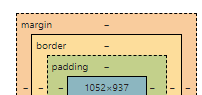
extContainer: { //영역의 바깥 공간 이격을 뜻합니다(하단 이미지 참조) margin:10, //영역 안의 컨텐츠 이격 공간을 뜻합니다(하단 이미지 참조) padding: 10, //테두리의 구부러짐을 결정합니다. 지금 보면 조금 둥글죠? borderRadius:10, //테두리의 두께를 결정합니다 borderWidth:2, //테두리 색을 결정합니다 borderColor:"#000", //테구리 스타일을 결정합니다. 실선은 solid 입니다 borderStyle:"dotted", textContainer: { //영역의 바깥 공간 이격을 뜻합니다(하단 이미지 참조) margin:10, //영역 안의 컨텐츠 이격 공간을 뜻합니다(하단 이미지 참조) padding: 10, //테두리의 구부러짐을 결정합니다. 지금 보면 조금 둥글죠? borderRadius:10, //테두리의 두께를 결정합니다 borderWidth:2, //테두리 색을 결정합니다 borderColor:"#000", //테구리 스타일을 결정합니다. 실선은 solid 입니다 borderStyle:"dotted", textStyle: { //글자 색을 결정합니다. rgb, 값 이름, 색상코드 모두 가능합니다 color:"red", //글자의 크기를 결정합니다 fontSize:20, //글자의 두께를 결정합니다 fontWeight:"700", //가로기준으로 글자의 위치를 결정합니다 textAlign:"center"
flex: 합의 개념.
flexDirection:"row", 자식의 화면 나누는 방향 : - 좌-> 우: row , 위-> 아래 :column justifyContent:"flex-start" : 컨텐츠 왼쪽:flex-start, 오른쪽 : flex-end *화면나누는방향 고려 alignItems:"flex-end" : justifyContent 반대 방향